Photobucket
PhotobucketPhotobucketPhotobucketPhotobucketPhotobucket
Photobucket

Sunday, June 22, 2008

A Review on Internet Security: Impact to Fight Cyber Terrorism


First of all, what is cyber terrorism?
It is basically define as the use of information technology by terrorist groups and individuals to execute attacks against networks, computer systems and telecommunications infrastructures. Some example would be such as hacking into others computer systems, introducing viruses to vulnerable networks, web site defacing, denial-of-service attacks, or terroristic threats made via electronic communication.


Here are some of the cyber terrorism events which has happened previously...


  1. In May 2007, Estonia was subjected to a mass cyber-attack in the wake of the removal of a Russian World War II war memorial from downtown Talinn. The attack was a distributed denial of service attack in which selected sites were bombarded with traffic in order to force them offline; nearly all Estonian government ministry networks as well as two major Estonian bank networks were knocked offline. Despite speculation that the attack had been coordinated by the Russian government, Estonia's defense minister admitted he had no evidence linking cyber attacks to Russian authorities.


  2. In October 2007, the website of Ukrainian president Viktor Yushchenko was attacked by hackers. A radical Russian nationalist youth group, the Eurasian Youth Movement, claimed responsibility.


  3. In 1999 hackers attacked NATO computers. The computers flooded them with email and hit them with a denial of service (DoS). The hackers were protesting against the NATO bombings in Kosovo. Businesses, public organizations and academic institutions were bombarded with highly politicized emails containing viruses from other European countries. No physical harm or injury had been inflicted.


The Effect of Cyber-terrorism...

Cyberterrorism can have a serious large-scale influence on significant numbers of people. It can weaken countries' economy greatly, thereby stripping it of its resources and making it more vulnerable to military attack.


Cyberterror can also affect internet-based businesses. Like brick and mortar retailers and service providers, most websites that produce income (whether by advertising, monetary exchange for goods or paid services) could stand to lose money in the event of downtime created by cyber criminals.

As internet-businesses have increasing economic importance to countries, what is normally cybercrime becomes more political and therefore "terror" related.


Steps to be taken to prevent Cyber-terrorism...

  1. All accounts should have passwords and the passwords should be unusual, difficult to guess.

  2. Change the network configuration when defects become know.

  3. Check with venders for upgrades and patches.

  4. Audit systems and check logs to help in detecting and tracing an intruder.

  5. If you are ever unsure about the safety of a site, or receive suspicious email from an unkown address, don't access it. It could be trouble.

Saturday, June 21, 2008

Threat of Online Security: How Safe is Our Data?


Threat of Online Security


Every unprotected computer is susceptible to have a high level of computer online security risk. The computer online security are virus, worm, and/or Trojan horse.

1) Virus
--A computer virus is a potentially damaging computer program
that affects, or infects, a
computer negatively by altering the way the computer works without the
user's knowledge or
permission. Once the virus infects the computer, it can spread throughout and may damage
files and system software, including the operating system.


2) Worm
--A worm is a program that copies itself repeatedly,
for example in the memory or on a
network, using up resources and possibly shutting down the computer or network.

3) Trojan horse

--A Trojan horse (named after the Greek myth) is a program that hides within or looks like a

legitimate program. A certain condition or action usually triggers the Trojan horse. Unlike a
virus or worm, a Trojan horse does not replicate itself to other computers.


Safeguards against Computer Viruses, Worm and Trojan Horses

Methods that guarantee a computer or network is safe from computer viruses, worm, and Trojan horses simply do not exist. User can take several precautions, however, to protect their home and work computer from these malicious infections.

1) Never start a computer with with removable media in the drives, unless the media in uninfected.

2) Never open an e-mail attachment unless you are expecting it and it is from a trusted source. Turn off
message preview.

3) Set the macro security in programs so you can enable or disable macros. Enable m
acros only if the
document is from trusted source and you are expecting it.

4) Install an antivirus program on all of your computers. Obtain updates to the virus signature files on a
regular basis.


5) Check all downloaded programs for viruses, worms, or Trojan horses. These malicious- logic programs
often are placed in seemingly innocent programs, so they will affect a large number of users.

6) If the antivirus program flags an e-mail attachment as infected, deleted the attachment immediately.

7) Before using any removable media, use the antivirus scan program to check the media for infection.
incorporate this procedure even for shrink- wrapped software from major developer
s. Some commercial
software has been infected and distributed to unsuspecting users this way.

8) Install a personal fire program.


Safeguard against Data and Information Theft

Many companies and individuals use a variety of encryption techniques to keep data secure and private.

Encryption
Encryption is a process of converting readable data into unreadable characters to prevent unauthorized access. You treat encrypted data just like any other data. That is, you can store it or send it in an e-mail message. To read the data, the recipient must decrypt, or decipher, it into readable form.

In the encryption process, the unencrypted, readable data is called plaintext. The encrypted (scrambled) data is called ciphertext. To encrypt the data, the originator of the data coverts the plaintext into ciphertext using an encryption key. In its simplest form, an encryption key is programmed formula that the recipient of the data uses to decrypt ciphertext.

When user send an e-mail message over the Internet, they never know might intercept it, who might read it, or to whom it might be forwarded. if a message contain personal or confidential information, users can protect the message by encrypting it or signing it digitally. One of the more popular e-mail encryption programs is called Pretty Good Privacy (PGP). PGP is freeware for personal, noncommercial users. Home users can download PGP from web at no cost.

A digital signature is an encrypted code that a person, website, or company attaches to an electronic message to verify the identity of the message sender. The code usually consists of the user's name and a hash of all part of the message. A hash is a mathematical formula that generates a code from the contents of the message. Thus, the hash differs for each message. Receivers of the message and compares it with oner in the digital signature to ensure they match.

Digital signature often are used to ensure that an impostor in not participating in an internet transaction. that is, digital signature help to prevent e-mail forgery. A digital signature also can verify that the content of a message has not change.


Thursday, June 19, 2008

How to safeguard our personal and financial data?


Today, people rely on computers to create, store and manage critical information. Thus, it is important that the computers and the data they store are accessible and available when needed. It also is crucial that users take measures to protect their computers and data from loss, damage, and misuse.
For example,

  • businesses must ensure that information such as credit records, employee and customer data, and purchase information is secure and confidential.
  • home users must ensure that their credit card number is secure when they use it to purchase goods and services from Web-based businesses.
There are some ways and suggestions to safeguard our personal and financial data....

Safeguards on personal data
  • Request electronic versions of bills, statements, and checks instead of paper.
  • Sign up for direct deposit of payroll to prevent paper checks from ending up in the wrong hands.
  • Shred all personal and financial information such as bills, bank statements, ATM receipts, and credit card offers before you discard them.
  • Keep your personal documentation (e.g. birth certificate, Social Security card, etc.) and your bank and credit card records in a secure place.
  • Limit the personal information that you carry in your wallet or purse.
  • Do not give your Social Security number, credit card number, or any bank account details over the phone unless you have initiated the call and know that the business that you are dealing with is reputable.
  • Do not disclose bank account numbers, credit card account numbers, and other personal financial data on any Web site or online service location, unless you receive a secured authentication key from your provider.
  • Do not allow mail to go uncollected. Retrieve it promptly.
  • Memorize your numbers and/or passwords. Do not write your Social Security number or passwords on paper and store them in your wallet or purse.
  • Avoid leaving envelopes containing your credit card payments or checks in your home mailbox for postal carrier pickup.
  • Prior to discarding a computer, make sure all personal information is deleted from its hard drive.
  • Take receipts at ATMs, bank counters, or unattended gasoline pumps with you.
  • Use passwords on your credit cards, bank accounts, and phone cards.
  • Review your credit reports annually.
  • Be aware of your surroundings when entering your Personal Identification Number (PIN) at an ATM.
  • Frequently monitor your account activity, such as balances and withdrawals.
Safeguards on personal and financial data

Firewalls
  • companies can use firewalls to protect network resources from outsiders and to restrict employees' access to sensitive data such as payroll or personnel records.
  • businesses can implement a firewall solution themselves or outsource their needs to a company specializing in providing firewall protection.
Access controls
  • many companies use access controls to minimize the chance that a perpetrator intentionally may access or an employee accidentally may access confidential information on a computer.
Encryption
  • to prevent information theft and to protect information on the internet and networks, companies and individuals use a variety of encryption techniques to keep data secure and private.

Tuesday, June 17, 2008

Phishing: Examples and its Prevention Methods

What is Phishing?

Phishing is an attempt to criminally and fraudulently acquire sensitive information, such as usernames, passwords and credit card details, by masquerading as a trustworthy entity in an electronic communication. PayPal, eBay and online banks are common targets.


Phishing is typically carried out by e-mail or instant massaging, and often directs users to enter details at a website, although phone contact has also been used.


Examples and Prevention Method of Phishing


Phishing emails


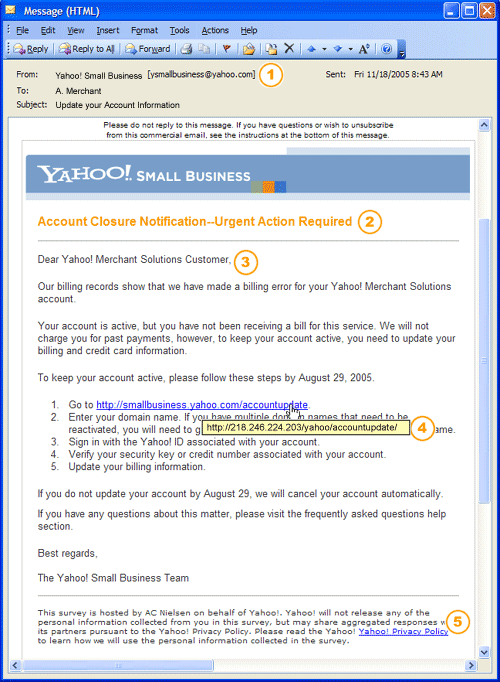
Phising emails usually appear to come from a well-know organization and ask for your personal information, such as credit card number, social security number, account number or password. Often times phishing attempts appear to come from sites, services and companies with which you do not even have an account.


How to Prevent?


Important: To be completely safe from phishers, do not click links in emails. If in doubt, close your browser, reopen it, and type the web address for the site you want to visit directly into the Address bar.

  1. Unofficial “From” address: Look out for a sender’s e-mail address that is similar to, but not the same as a company’s official email address.
  2. Urgent action requires: Be wary of emails containing phrase like “your account will be closed”, “your account has been compromised”, or “urgent action required”. The fraudster is taking advantage of your concern to trick you into providing confidential information
  3. Generic greeting: Fraudster may have your email address, but they seldom have your name. Be skeptical of an email sent with a generic greeting suc as “Dear Customer” or “Dear Member”.
  4. Links to a fake web site: To trick you into disclosing your user name and password, fraudsters often include a link to a fake website that look like the sign-in page of a legitimate website.
  5. Legitimate link mixed with fake links: Fraudsters sometimes include authentic links in their spoof pages in order to make the spoof site appear more realistic. There are some indicators that an email might not be trustworthy.

  • Spelling errors, poor grammar, or inferior graphics.
  • Request for personal information
  • Attachments

Sample bogus e-mail from Citibank:


Example Phishing on eBay:


Phishing Web Site


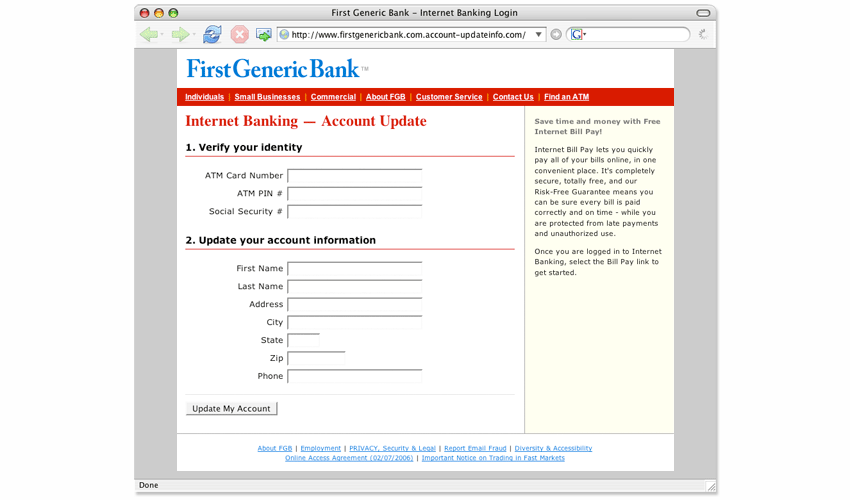
A phishing web site (spoofed) tries to steal your account password or other confidential information by tricking you into believing you’re on a legitimate web site.

Important: If you’re at all unsure about a web site, do not sign in. The safest thing to do is to close and then reopen your browser, and then type the URL into your browser’s Address bar.


How to Prevent?


1. Incorrect company name: Look out for tricks such as substituting the number “1” for the letter “I” in a web address (for example, www.paypa1.com instend of www.paypaI.com ).

2. http:// at the start of the address on Yahoo! sign-in pages: A legitimate Yahoo! sign-in page address starts with “https://”. Look for the letter “s” following “http”.

3. Missing slash: Make sure a forward slash (“/”) appears after “yahoo.com” in the Address bar.


A slash (“/”) after “yahoo.com” can help identify a Yahoo! site.


For example, "http://www.yahoo.com:login&mode=secure" is a fake web site address.


Both Internet Explorer and Mozilla Firefox web browsers have free add-ons (or “plug-ins”) that can help you detect phishing sites.


How to Spot Phishing Scams:


  1. Never reply to e-mail massages that request your personal information.
  2. Don’t click links in suspicious e-mail, do not copy and paste links from messages into your browser.
  3. Use strong passwords and change them often.
  4. Don’t send personal information in regular e-mail messages.
  5. Do business only with companies you know and trust.
  6. Make sure the web site uses encryption .
  7. Help protect your PC. Use firewall, keep your computer updated, and use antivirus software.
  8. Monitor your transactions. Review you order confirmations and credit card and bank statements.
  9. Use credit cards for transactions on the internet